
How to batch-print shipping labels
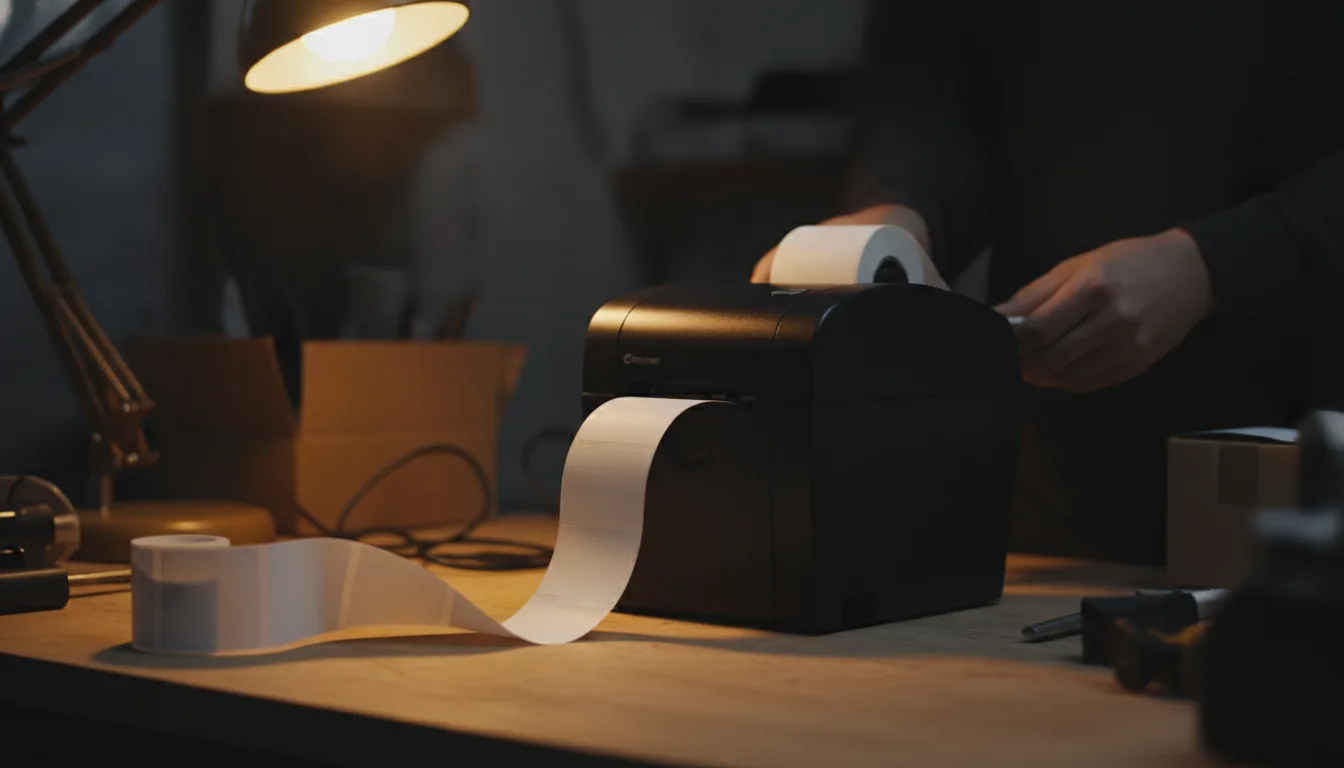
To batch-print shipping labels, you select many orders in your shipping software at once, let it generate a label for each, and print them all in a single job instead of processing orders one at a time. The core steps are: import your orders, verify weights and addresses, run rate shopping across the batch, generate the labels together, and send them to a thermal or laser printer in one pass. For a growing store, batch printing is the single biggest time saver in day-to-day fulfillment.
This how-to walks through the process step by step, the printer and file choices that matter, and the mistakes that cause reprints. It assumes you already use, or are choosing, multi-carrier shipping software. If not, start with what shipping software is.
What you need before you start
Before batch printing, get three things in place: connected orders, accurate package data, and a working printer setup. Skipping any of these is what turns a batch into a pile of reprints.
- Orders synced into your software. Connect your store or marketplace so unfulfilled orders import automatically, or import a spreadsheet.
- Accurate weights and dimensions. Wrong weights cause wrong rates and carrier corrections later. Assign known values to repeat products so they are correct by default.
- A label printer and the right file format. A thermal label printer for 4x6 labels, or a laser or inkjet printer for label sheets or PDFs.
With those ready, the batch itself is fast. The preparation is where accuracy is won or lost.
How to batch-print labels step by step
The process is the same across most shipping tools: select, verify, rate, generate, print. Here it is in order.
- Filter to the orders you want to ship. Narrow to unfulfilled, paid orders, often for today, so you are working from a clean list.
- Verify addresses and package details. Let the software validate addresses and confirm each order has a weight and box size. Fix flagged orders before printing.
- Run rate shopping across the batch. Have the software pick the cheapest compliant carrier and service for each order. See rate shopping for how to define "compliant" so you do not just chase the lowest number.
- Select all and generate labels. Confirm the batch, then generate every label at once. The software buys the labels and prepares the print file.
- Print in one job. Send the combined file to your printer. Thermal printers produce one 4x6 label per order; sheet printers place labels on pages.
- Confirm tracking wrote back. Check that tracking numbers flowed back to your orders and that customer notifications are queued.
After the first successful batch, time it against your old one-at-a-time routine. The gap is usually large enough to justify the software on its own.
Thermal vs. sheet printing
Choose a thermal printer for volume and a laser or inkjet printer only if you are just starting out. The format you print to should match your printer, and getting this right avoids most alignment problems.
| Method | Best for | Watch out for |
|---|---|---|
| Thermal 4x6 labels | Regular shippers, higher volume, no ink | Needs a dedicated label printer and label size set correctly |
| Laser or inkjet on label sheets | Low volume, using a printer you already own | Wasted labels if a sheet jams mid-batch; ink cost |
| Plain paper PDF, taped on | Occasional shipments, no label stock | Slower to apply; least professional finish |
Whatever you pick, set the label size in your software and your printer driver to match (4x6 for thermal). A mismatch here is the number one cause of shrunk, rotated, or blank labels.
Common batch-printing mistakes
Most reprints come from a handful of avoidable errors, and all of them are cheaper to prevent than to fix after labels are bought. Watch for these.
- Printing before verifying addresses. A bad address becomes a return once the label is used. Validate first.
- Wrong or missing weights. These produce wrong rates and later carrier billing corrections. Set product defaults so weights are right automatically.
- Label size mismatch. If the file size and printer setting disagree, labels print shrunk or off-center. Match them once and save the setting.
- Ignoring dimensional weight. Bulky-light boxes can be priced on volume, so verify the real cost. See dimensional weight.
- Printing international orders without customs data. Cross-border orders need customs paperwork generated alongside the label.
A quick pre-print check for these five turns batch printing from error-prone into routine.
Batch printing for cross-border orders
For international orders, the label is only half the job: you also need customs paperwork generated in the same pass. Multi-carrier software can produce the commercial invoice and customs data from your product catalog at the same time it prints the label, which keeps a batch of mixed domestic and international orders moving.
This matters especially for overseas brands and consolidators shipping into the U.S., a core audience for Expership, whose multi-carrier shipping software and API are built around cross-border fulfillment into the United States. For the wider workflow, see the ecommerce shipping guide and multi-carrier shipping.
Automating and scaling batch printing
As volume grows, reduce the manual steps in each batch by adding rules and, eventually, an API. Automation rules can assign carriers, weights, and package presets before you ever open the batch, so generating labels becomes nearly one click. Our shipping automation guide covers what to automate and when.
At higher volume or with custom systems, an API lets you generate labels programmatically the moment orders are ready, without a person running a batch at all. If that fits your roadmap, read what a shipping API is and explore the developer docs. You can manage day-to-day batches in the shipping platform, and create an account to print your first batch.
Verify addresses and weights before you generate labels. It is far cheaper to fix an order than to void a purchased label.
Frequently asked questions
What printer do I need to batch-print shipping labels?
A thermal label printer that produces 4x6 labels is the standard choice for regular shippers because it is fast and uses no ink. If you ship only occasionally, a laser or inkjet printer with adhesive label sheets, or even plain paper taped to the package, works. Match the label size in your software to your printer to avoid alignment problems.
Can I batch-print labels for different carriers at once?
Yes. With multi-carrier shipping software, a single batch can contain orders assigned to different carriers, because the software runs rate shopping per order and generates each label from the right carrier. They still print together in one job, so mixing carriers does not slow the batch down.
How do I avoid wasting labels and reprints?
Verify addresses and confirm weights and box sizes before generating labels, and match your label size setting to your printer. Most reprints come from bad addresses, wrong weights, or size mismatches, all of which are caught in a quick pre-print check. Fixing an order before printing is cheaper than voiding a purchased label.
Does batch printing handle customs forms for international orders?
Good multi-carrier software generates the customs paperwork, such as the commercial invoice, in the same pass as the label. This lets you batch mixed domestic and international orders together. Confirm your tool supports your origin and destination and pulls customs data from your product catalog before relying on it.
Can batch printing be automated so I click once?
Largely, yes. Automation rules can pre-assign carriers, weights, and package presets before you open the batch, reducing label generation to nearly one click. For higher volume or custom systems, an API can generate labels programmatically as orders arrive, removing the manual batch step entirely.